
Screens
Outreach
Every conversation in one place, AI-written templates and sequences, and a log of your most recent messages.
Outreach is where email leaves Diurno HQ: pre-built, per-account custom messages — sent one at a time from any account page, or automatically as multi-step sequences. Every send is logged twice (the exact message on the Sent tab, a touch on the account's timeline), so communications tracking is automatic, not a discipline. Sending is part of the paid plans; the Free plan can draft, preview, and build templates and sequences by hand. Step-by-step walkthrough: Send email & sequences.
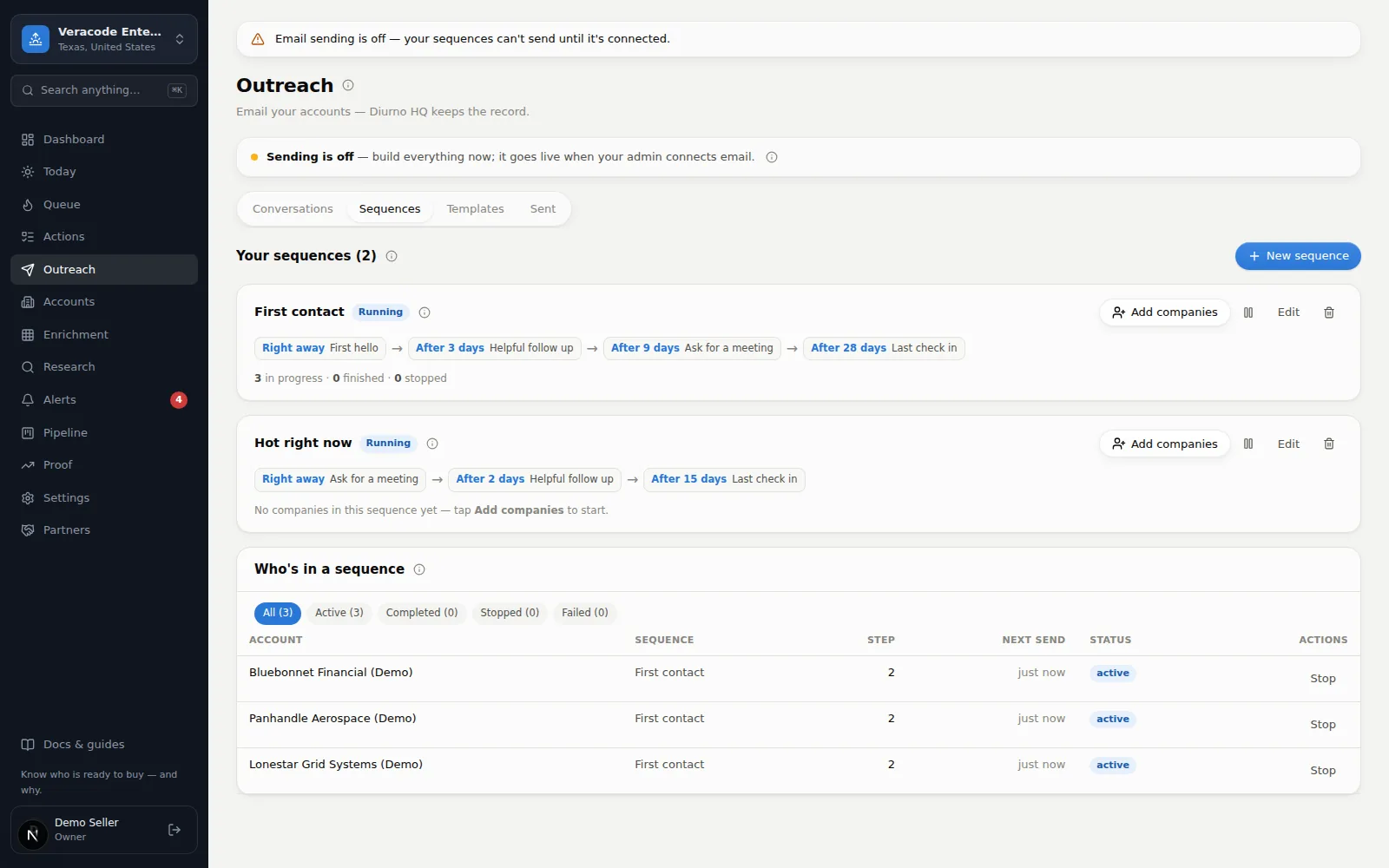
The four tabs
| Tab | What it does |
|---|---|
| Conversations | The hub, and the first thing you see. Every account you've emailed, one row each (the newest 200; Show older conversations loads more): who it's with, the last message, whether they've replied, whether a sequence is still running. Click a row for the full thread — your sends on one side, logged replies/calls/meetings on the other — then log a reply (which stops any running cadence) or send the follow-up right there. |
| Sequences | Your automatic email plans. Each card reads as a plain timeline — “Right away · First hello → Day 3 · Helpful follow up”, each day counted from the first step (waits run 1–365 days) — with an Add companies button right on it (search, tick, done). With email on, an email step 1 goes out the moment you add one company; several at once go out on the next runner pass (the runner checks every 15 minutes, so allow a little while). A company with nobody to email isn't added to an email-first sequence, and the result says so. LinkedIn and call steps become to-dos due today in your Action Stream; while email sending is off, email steps wait rather than skip. Follow-ups go out when they come due, inside your sending window. Below the cards, Who's in a sequence lists the newest 500 enrollments plus every running one, with the next send and a Stop button (Resume on a failed one) — and nothing ends silently: every ended enrollment shows its reason. |
| Templates | The emails themselves. Write one once with fill-in-the-blank spots — shown in lists as [name], [company], [the reason] — and every send fills them in per account and contact. Each template shows how many sequences use it (a template in use can't be deleted until it's removed from those steps), and any template can carry a B version: sends split 50/50 and the list keeps a per-version sent/clicked tally so the winner is visible. |
| Sent | Every outbound message as delivered — the newest 500; older ones aren't listed or searched — with its status (Sending, Sent, Failed, Bounced, or Marked as spam), plus engagement chips: a green Clicked (a link was clicked and it didn't look like a security scanner or a prefetch, so it counts as engagement) or a quiet Opened (a hint only; mail apps inflate opens). Click a row to read the full email; a failed or bounced send shows the provider's reason right in that dialog. |
The open tab is part of the address (?tab=sequences, ?tab=templates, ?tab=sent), so reload, Back and shared links keep it. If a tab can't load, it says Couldn't load … with Try again — never a misleading empty list.
A new workspace's Sequences tab opens with a Two steps to your first campaign card. On a paid plan with a live AI model its first step is Let AI write your emails (a starter set of emails and follow-up plans); on the Free plan, or where there is no model, it reads Write your first email with a New template button. The second step is picking the companies they go to. After you add companies, the confirmation says exactly what happens next: LinkedIn and call steps become tasks in your Action Stream; email steps wait while sending is off; otherwise step 1 sends right away for a single company, or on the next runner pass for several (it hasn't been sent yet when the dialog says so).
Steps don't have to be email: a sequence can mix in LinkedIn messages and phone calls — Diurno HQ writes them and hands you the to-do at the right moment, since those can't honestly be automated. Details: Send email & sequences.
Generate with AI
Don't start from a blank page: Generate with AI (on the Templates tab and the first-visit setup card) writes a full starter library — templates with everyday names like First hello, Helpful follow up, Ask for a meeting, Last check in, plus 2–3 complete sequences — from this workspace's own model: what you sell, who buys it, your competitors, your ICP and positioning. Fill-in-the-blank spots keep every send custom to each account and contact at delivery time, with the [the reason] blank carrying that company's current, sourced evidence (and its sentence dropped when there is none). Nothing is overwritten — re-running only fills gaps — and everything it writes is yours to edit. It calls the writing model the moment you press it, so it needs a paid plan and a live model: on the Free plan, or where the Research screen says instant research is turned off, the button is disabled with the reason beside it (“AI writing isn't available on this deployment”) and you write templates by hand with New template. Only a busy provider says to try again shortly.
How sending works
- Real addresses only — emails go to contact addresses you typed in or imported from a CSV. Research never supplies an email address, and Diurno HQ never invents one.
- Replies reach you — answers land in your normal inbox; with reply detection on they pass through Diurno HQ first and are forwarded to you.
- Identity, address + unsubscribe on every send — a footer with your organization, your mailing address and a one-click unsubscribe link is appended automatically. The address is required (it's the law): until your workspace has one, a one-off send says so and sequence emails wait in place and are re-checked about once an hour, so they start going out after an admin adds one (still inside your sending hours and daily cap). An unsubscribe puts the address on your organization's do-not-email list once the person presses the button on the page the link opens (opening it records nothing): sends are checked against it, every contact with that address in your organization is flagged, and their sequences end.
- Stop on reply — with the default on, any human touch logged after enrollment (a call, meeting, or reply you record) stops the cadence. With reply detection configured, the reply itself does it — matched to the thread, sequence stopped, forwarded to your inbox, alert raised — no logging needed. The sequence's own emails don't count as engagement.
- Business hours for sequences — sequence email goes out between your workspace's sending hours (8am–6pm by default, in its timezone — US Central unless you change it), under a daily cap (200 emails a day by default) that one-off sends count toward; a one-off isn't held to the hours, but is refused with a plain message once the cap is spent. Anything due outside the window is held, not skipped, and goes out on the first runner pass after the window opens (the runner checks every 15 minutes).
- Stops that protect you — an account turning Customer or Disqualified, or a reply you log, ends the cadence with the reason recorded; an address on the do-not-email list isn't emailed by your organization, and the list survives deleting the contact; and a paused sequence holds every enrollment in place until you resume it (to remove a paused sequence, delete it — that ends whoever was still enrolled).
From an account page
The Email button opens the composer: pick the contact, start from a template or the AI opener (grounded in that account's real evidence), preview the rendered message, send. Enroll next to it adds the account to a sequence. Automations can enroll accounts too — “enters Call now → enroll in the hot-account cadence”. While email setup isn't finished the button reads Email off and takes you to email setup; enrolling still works — LinkedIn and call steps arrive as tasks and email steps wait, nothing skipped.
Email setup
Owners and admins see a Set up email sending card at the top of the Outreach screen — a checklist with a progress bar. Its steps: connect the email provider (an API key), verify the sender address, add your company's mailing address (required — each workspace sets its own under SettingsIntegrationsSending hours & deliverability, and nothing sends without one), and set the app's public address (the unsubscribe link needs it, and nothing sends without it); two recommended extras follow — open and click tracking (without it emails carry plain links and nothing is recorded) and reply detection. Each step ticks itself off as soon as it's done, and once sending works the card is retitled Finish email setup until the recommended steps are done too. If the workspace's newest send didn't go out, a red line shows the provider's own words. The last line, Last: prove it works, has a Send a test email button that sends a real message to you, the signed-in admin, to prove the key, the sender and delivery all work. When everything is done the card shrinks to a one-line “Email is connected” note (the test button stays on it).
The card has a Hide steps / Show steps toggle: open on a desktop, folded on a phone, and it remembers your choice in that browser. Every link to email setup (the composer's Set up email, Email off on an account, the guide strip, or a deliverability warning) opens it. Members don't see the checklist — just one line saying email isn't set up yet and to ask their Diurno HQ admin.
Setup happens on the Diurno HQ server